

Wonder Mesh Phase 2: Public Access
Your home server services are now accessible from the internet.
 Matthew
When we launched Wonder Mesh, we mentioned that Phase 2 — public internet access — was on the way. Today, it's here.
All you need is a server with a public IP — one you already have, your own VPS, or a new one from Zeabur. Set it up as a Gateway, bind a domain, and your home-hosted service is live on the internet.
How It Works
The Gateway is made of two components deployed as a project on the dedicated server:
- Gateway service — a reverse proxy that accepts public traffic, terminates TLS, and forwards requests based on domain routing rules.
- Tailscale sidecar — connects the dedicated server to the Wonder Mesh network via Tailscale, allowing the gateway to reach services running on your home machine through the mesh.
When a request arrives, it flows like this: Internet → dedicated server → Gateway → Tailscale sidecar → mesh network → your home machine.
Your home machine still needs no public IP and no port forwarding — all traffic is routed through the secure mesh.
Quick Start
- Open your Wonder Mesh server's detail page and go to the Gateway tab.
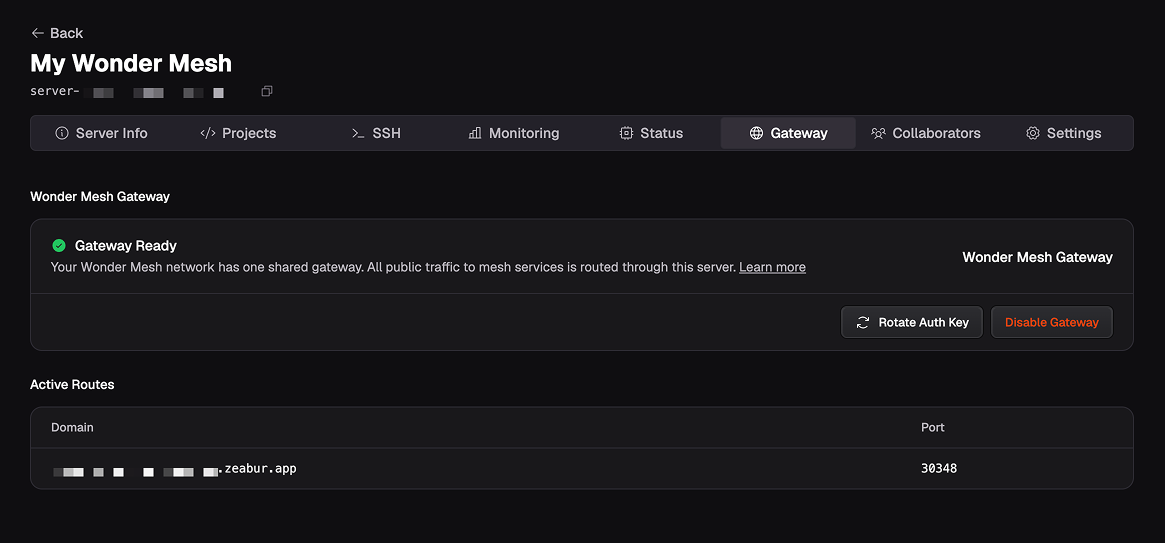
- Select a dedicated server to host the Gateway and click Enable.
- Go to any service's Networking tab, bind a domain, and you're live.
What You Can Do
- Bind domains — Use a free
.zeabur.appsubdomain or bring your own custom domain with automatic TLS. - Track provisioning — Domain status updates in real time so you know exactly when your service is reachable.
- Manage routes — View all gateway routes from the service's Networking tab or the server's Gateway tab.
- Rotate auth keys — The gateway connection is secured with an auth key that you can rotate anytime.
Learn More
Read the full guide in the Gateway documentation.
Have questions or feedback? Visit the Zeabur Forum.